Convert Json To Zod Schema Online - Free Developer Tool
Convert JSON to Zod schemas online in seconds. Free JSON to Zod converter with automatic TypeScript type inference and 2026 Zod v3/v4 support.
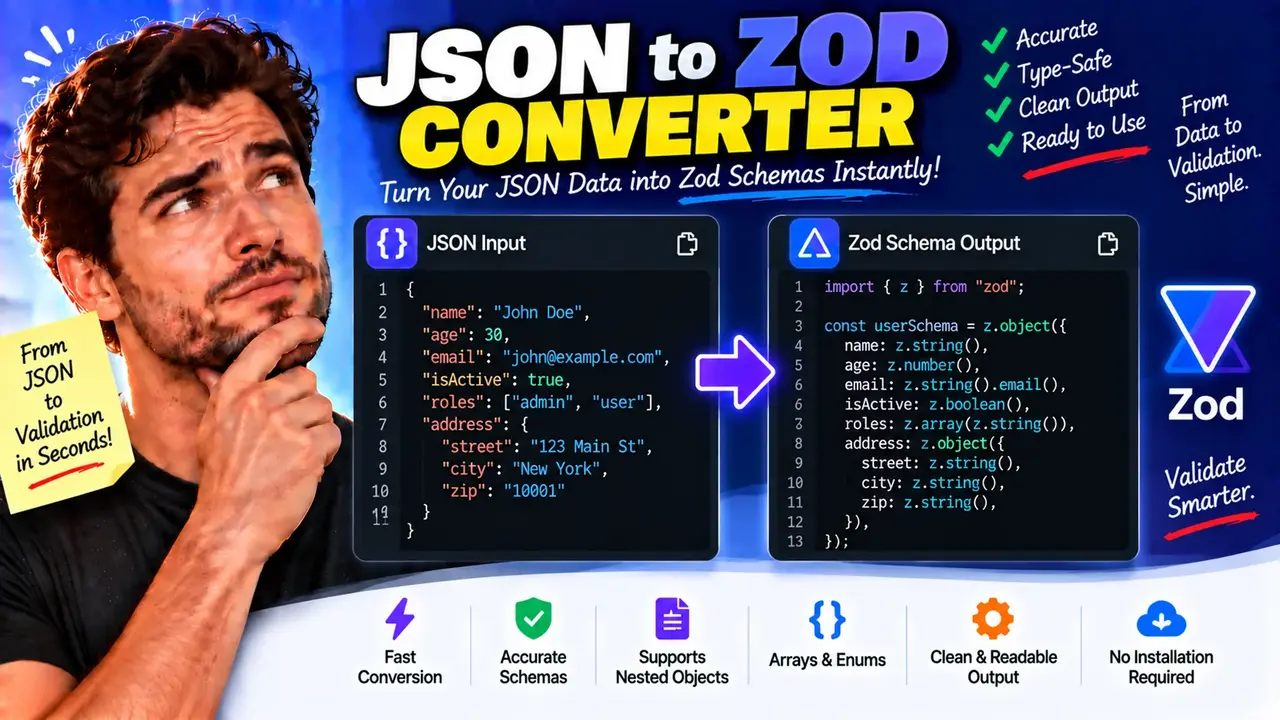
Online JSON to Zod Converter
TL;DR Summary
JSON to Zod Converter turns a JSON data example into a Zod schema that you can use for JavaScript or TypeScript validation. It is intended as a schema-generation aid, and the supplied tool information does not document how submitted JSON is processed or stored, so avoid entering sensitive data unless the page clearly explains its data handling.
About This Tool
JSON to Zod Converter is a developer tool for turning JSON data into a Zod validation schema. Zod is a TypeScript-first schema library that lets developers describe the expected shape and data types of JavaScript or TypeScript values. Instead of writing every field by hand, you can provide a representative JSON object and use the generated Zod schema as a starting point for validation code.
This tool is useful when you receive JSON from an API, configuration file, webhook, database export, test fixture, or another application and need a corresponding Zod schema. It can also help when an existing JSON structure contains several fields, nested objects, arrays, and different primitive data types.
The basic input is JSON. A typical JSON object can contain strings, numbers, booleans, arrays, nested objects, and null values. The converter examines the structure and creates corresponding Zod expressions. For example, a JSON string can map to z.string(), a JSON number can map to z.number(), and a JSON boolean can map to z.boolean(). An object can be represented with z.object(), while an array can be represented with an appropriate Zod array schema.
The output is Zod schema code. The supplied tool image shows output in the form of JavaScript or TypeScript code that imports Zod and defines an object schema. This makes the result useful as code that can be copied into a project and then adjusted to match the application's actual validation requirements.
What You Enter
Enter a valid JSON structure that represents the data you want to describe with Zod. The JSON should use standard JSON syntax, including double-quoted property names and valid JSON values.
For example:
{
  "name": "John Doe",
  "age": 30,
  "email": "john@example.com",
  "isActive": true,
  "roles": ["admin", "user"],
  "address": {
    "street": "123 Main St",
    "city": "New York",
    "zip": "10001"
  }
}
This example contains several common JSON types. It has strings, a number, a boolean, an array, and a nested object. These structures give the converter information that can be represented in a Zod schema.
What You Get
The output is a Zod schema representing the structure found in the supplied JSON. For the example above, a representative result is:
import { z } from "zod";

const userSchema = z.object({
  name: z.string(),
  age: z.number(),
  email: z.string().email(),
  isActive: z.boolean(),
  roles: z.array(z.string()),
  address: z.object({
    street: z.string(),
    city: z.string(),
    zip: z.string(),
  }),
});
The exact output can depend on the data supplied to the converter. A generated schema should therefore be reviewed before it is used as a final application contract.
How to Use JSON to Zod Converter
- Step 1: Prepare a valid JSON object that represents the structure of the data you want to validate.
- Step 2: Paste or enter the JSON into the converter's JSON input area.
- Step 3: Review the generated Zod schema in the output area.
- Step 4: Check nested objects, arrays, field types, and other generated rules against your actual application requirements.
- Step 5: Copy the Zod schema into your JavaScript or TypeScript project and make any project-specific changes you need.
Technical Explanation
The converter follows the structure and value types represented by the input JSON. At a basic level, JSON-to-Zod conversion is a mapping between JSON data types and Zod schema expressions.
| JSON value or structure | Typical Zod representation |
|---|---|
| String | z.string() |
| Number | z.number() |
| Boolean | z.boolean() |
| Object | z.object({...}) |
| Array | z.array(...) |
| Nullable value | A nullable Zod schema, when supported by the conversion logic |
For a simple object, the standard mapping can be expressed as:
JSON object
    ↓
Read each property
    ↓
Determine the value type
    ↓
Map the type to a Zod schema
    ↓
Combine fields with z.object()
    ↓
Generate Zod code
For example, if the input contains "age": 30, the value is a JSON number, so the corresponding basic schema is age: z.number(). If the input contains "isActive": true, the corresponding basic schema is isActive: z.boolean(). A nested JSON object requires another z.object() inside the parent schema. An array requires a schema describing the values inside that array.
There is an important distinction between a JSON example and a complete data specification. A single JSON value shows what appeared in that particular example. It does not always prove every rule that your application needs. For instance, a sample string does not automatically establish whether the field is required, whether it must contain an email address, what maximum length it should have, or whether another value is allowed.
Preset Examples and Quick Reference
| JSON example | Basic Zod mapping |
|---|---|
"name": "Alice" |
name: z.string() |
"count": 12 |
count: z.number() |
"enabled": true |
enabled: z.boolean() |
"tags": ["api", "json"] |
tags: z.array(z.string()) |
"profile": {"city": "Boston"} |
profile: z.object({ city: z.string() }) |
Working With Arrays and Nested Objects
Real-world JSON often contains more than flat key-value pairs. A user record may contain an address object, while an API response may contain an array of records. JSON to Zod Converter is intended to make these structures easier to represent as nested Zod schemas.
For an array of strings, the standard Zod structure is z.array(z.string()). For an array containing objects, the object schema can be placed inside the array definition. For nested objects, use another z.object() expression inside the parent schema.
Important Assumptions
The generated schema is based on the JSON structure provided to the converter. A representative JSON example should contain the fields and value types that you expect the application to handle. If the example is incomplete, the generated schema may also need additional editing.
Generated schemas are best treated as a starting point for validation design. You may need to add application-specific rules such as optional fields, defaults, minimum or maximum values, string length rules, URL or email validation, custom refinements, unions, discriminated unions, or other Zod features. These requirements cannot always be determined from one JSON example alone.
Assumptions and Limitations
- The input should be valid JSON before conversion.
- The generated schema reflects the structure and values represented by the supplied JSON.
- A sample JSON document may not reveal every possible value or business rule.
- Optional fields cannot necessarily be inferred reliably when they are absent from a sample.
- Application-specific validation rules may require manual editing after conversion.
- The generated code should be reviewed and tested before being used as a production validation contract.
- The supplied tool information does not specify server-side processing, storage, or other detailed privacy behavior. Do not enter sensitive information unless the page provides suitable data-handling information.
When Should You Review the Generated Schema?
Review the output whenever the JSON represents an API contract, user-submitted data, configuration used in a production system, or another structure where validation behavior matters. Compare the generated schema with the real specification rather than assuming that one sample JSON document defines every allowed value.
JSON to Zod Converter is most useful for reducing repetitive schema-writing work and giving developers a readable Zod starting point. It does not replace testing or the need to define the actual rules of an application's data model.
Why Use This JSON to Zod Converter & How Our JSON to Zod Converter Beats the Competition
The practical value of a JSON-to-Zod converter is that it connects an existing JSON example with a Zod schema without requiring every basic field mapping to be written manually. Different development methods still have valid uses, depending on the complexity of the data and the level of control required.
| Method | Ease of Use | Calculation Speed | Best For | Limitations |
|---|---|---|---|---|
| Toolhox JSON to Zod Converter | Enter JSON and review generated schema | Designed for direct conversion | Turning JSON examples into a Zod starting point | Generated output still needs review for application-specific rules |
| Manual calculation | Requires writing the schema by hand | Depends on the developer | Highly customized schemas | More repetitive for larger JSON structures |
| Spreadsheet calculation | Not designed for Zod schema generation | Depends on spreadsheet setup | Tabular data analysis | Requires a separate process to produce Zod code |
| Professional development tools | Depends on the software and workflow | Depends on the workflow | Large projects and advanced development requirements | May involve more setup than a focused conversion task |
The main trade-off is control versus convenience. Manual schema design gives developers direct control over every validation rule. A JSON-to-Zod converter instead provides a structured starting point based on the supplied data. For a simple or moderately complex JSON example, that can reduce repetitive typing while leaving final validation decisions with the developer.