XML to LINQ Converter Online
TL;DR Summary
XML to LINQ Converter transforms XML data into C# LINQ query code, helping developers turn XML structures into queryable object projections. The supplied tool information does not confirm whether XML is processed locally, sent to a server, or stored, so users should avoid entering sensitive data unless the page clearly explains its data-handling practices.
About XML to LINQ Converter
XML to LINQ Converter is a developer utility designed to convert XML input into LINQ-oriented C# code. It is useful when you have structured XML and want a starting point for reading elements, selecting values, and projecting those values into C# objects.
XML is commonly used to represent hierarchical data. A document can contain a root element, child elements, nested records, attributes, and repeated items. Writing LINQ to XML code by hand requires you to understand that structure and then create the appropriate C# expressions. The converter is intended to reduce that manual work by turning the supplied XML structure into a corresponding LINQ code example.
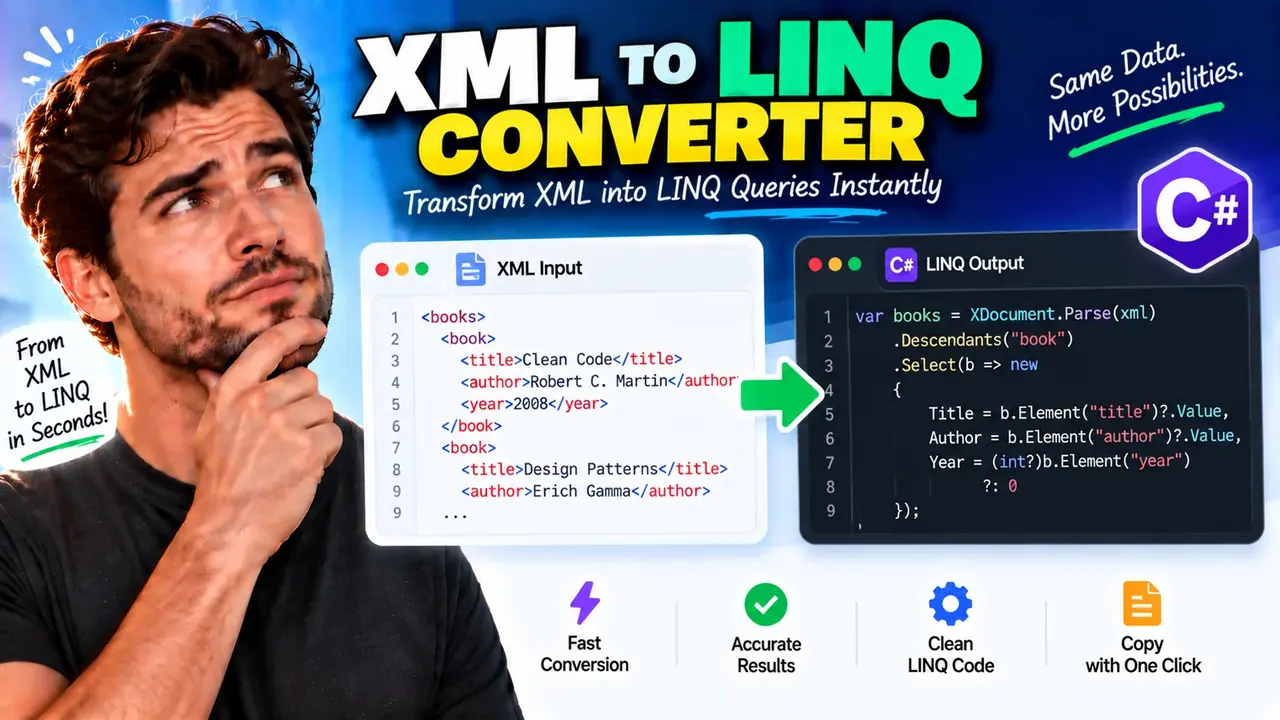
The supplied visual example shows an XML document containing repeated book elements. Each book contains fields such as title, author, and year. The displayed C# output uses an XDocument, searches descendants named book, and uses Select to create an object containing values read from the XML. This provides a practical example of the type of XML-to-LINQ transformation the tool is intended to support. :contentReference[oaicite:0]{index=0}
What Problem Does It Solve?
Manually converting XML into LINQ code can be repetitive, especially when an XML document contains several nested elements. You must identify the useful nodes, determine how they repeat, and write C# expressions to access their values. An XML to LINQ converter provides a generated starting point instead of requiring every expression to be written from scratch.
The tool can be useful for C# developers, .NET developers, students learning LINQ to XML, developers working with XML-based APIs, and anyone who needs to inspect or query structured XML through C# code.
What You Enter
The primary input is XML text. The XML should describe the structure you want to query or transform. A typical document may contain a root element with one or more repeated records, such as products, customers, books, orders, or other entities.
For example, a simple input could look like this:
<books>
  <book>
    <title>Clean Code</title>
    <author>Robert C. Martin</author>
    <year>2008</year>
  </book>
  <book>
    <title>Design Patterns</title>
    <author>Erich Gamma</author>
    <year>1994</year>
  </book>
</books>
The supplied example demonstrates this general structure. The exact controls, optional settings, validation behavior, and output customization available on the live page are not specified in the supplied tool information, so they should not be assumed.
What You Get
The output is C# LINQ-oriented code. The supplied visual example shows code based on XDocument.Parse(xml), followed by Descendants("book") and Select. The selected XML values are projected into an object containing fields such as title, author, and year.
The generated code should be treated as a useful starting point. Review the result before placing it into production code. Your XML namespaces, optional elements, attributes, data types, null handling, naming conventions, and application requirements may require changes after conversion.
How to Use XML to LINQ Converter
- Step 1: Prepare the XML you want to work with and make sure it represents the data structure you want to query.
- Step 2: Enter or paste the XML into the XML input area of the converter.
- Step 3: Run the conversion using the tool's available conversion action.
- Step 4: Review the generated C# LINQ code and compare its element names and selected fields with your original XML.
- Step 5: Copy the generated code and adapt it to your project, including any required namespaces, types, XML namespaces, validation, and error handling.
Technical Explanation
This is a converter rather than a mathematical calculator, so there is no numerical conversion formula. The underlying transformation can be described as a mapping from an XML hierarchy to C# LINQ expressions.
The displayed example provides a useful model:
var books = XDocument.Parse(xml)
    .Descendants("book")
    .Select(b => new
    {
        Title = b.Element("title")?.Value,
        Author = b.Element("author")?.Value,
        Year = (int?)b.Element("year") ?? 0
    });
In this example:
XDocument.Parse(xml)represents the XML document as an object that C# code can query.Descendants("book")identifies the book elements that should be processed.Select(...)projects each XML element into a C# object.Element("title")?.Valuereads the text value of the title element.Element("author")?.Valuereads the text value of the author element.- The year expression demonstrates conversion of an XML value into an integer while providing a fallback value.
The exact generated code can vary with the structure of the XML. The example above explains the standard LINQ-to-XML approach represented by the supplied visual example; it should not be treated as a statement about hidden implementation details of the converter.
Preset Examples / Quick Reference
| XML Structure | Typical LINQ Operation | Purpose |
|---|---|---|
| Repeated child elements | Descendants() |
Find repeated records at different levels of the XML tree. |
| Direct child value | Element()?.Value |
Read text stored inside an XML element. |
| Multiple XML fields | Select() |
Project XML values into a C# object. |
| Numeric XML value | C# numeric conversion | Convert suitable XML text into a numeric value. |
Working With the Generated Code
Generated code is most useful when you understand the XML structure behind it. Check the root and child element names, especially when XML contains nested records. If the document uses XML namespaces, the generated code may need namespace-aware element access. If some elements are optional, review null handling before using the result.
You should also check data types. XML values are represented as text, while your C# application may expect integers, dates, decimals, Boolean values, or other types. A conversion from XML text to a C# type should match the actual data in your document.
For larger applications, review the generated LINQ expression for readability and maintainability. A converter can provide the initial query structure, but developers remain responsible for fitting that code into their application's models, error handling, testing, and coding standards.
Why Use This XML to LINQ Converter & How Our XML to LINQ Converter Beats the Competition
The practical difference between this converter and other ways of creating LINQ code is mainly the workflow. Manual coding gives you full control but requires you to write the query yourself. A spreadsheet is not a natural fit for generating C# LINQ expressions. Professional development tools can provide broader project-level features, but they may involve a larger workflow than a focused conversion task.
| Method | Ease of Use | Calculation Speed | Best For | Limitations |
|---|---|---|---|---|
| Toolhox XML to LINQ Converter | Focused workflow for XML-to-LINQ conversion | Designed for direct conversion | Generating a starting C# LINQ query from XML | Generated code still needs developer review and adaptation |
| Manual Calculation / Coding | Requires more hands-on work | Depends on the developer | Custom queries and complete control | More repetitive for structured XML |
| Spreadsheet | Not designed for this task | Depends on the spreadsheet workflow | Tabular data analysis | Does not naturally produce C# LINQ source code |
| Professional Development Software | Can involve a broader development workflow | Depends on the software and project | Full application development and code management | May be more than needed for a simple conversion task |
Assumptions and Limitations
The converter should be viewed as a code-generation aid, not as a substitute for testing the resulting C# code. The supplied information confirms the XML-to-LINQ purpose and shows an example using common LINQ-to-XML patterns, but it does not document every supported XML feature or every possible output rule.
Results can depend on the structure of the XML you provide. Nested elements, attributes, repeated nodes, missing values, namespaces, unusual element names, mixed content, and type conversions can all affect how generated code should be written or adjusted.
Always validate generated code against your real XML data. Test empty values and unexpected structures where they are possible. For production applications, review the code for correct types, null handling, XML namespaces, performance needs, security requirements, and application-specific conventions.
The supplied tool information does not document its data-processing or storage behavior. Do not enter passwords, private records, confidential business data, or other sensitive XML unless the live page provides clear information that its handling is appropriate for your use case.
In short, XML to LINQ Converter is intended to help bridge the gap between an XML document and a C# LINQ query. It can provide a practical starting point for developers who need to read XML elements and project them into C# objects, while the final code should be reviewed and tested before use.