Json To Excel Converter Online Free (fast & Secure)
Convert JSON to Excel (.xlsx) easily with our fast, free online tool. Simple JSON to Excel Converter with clean formatting and no data loss.
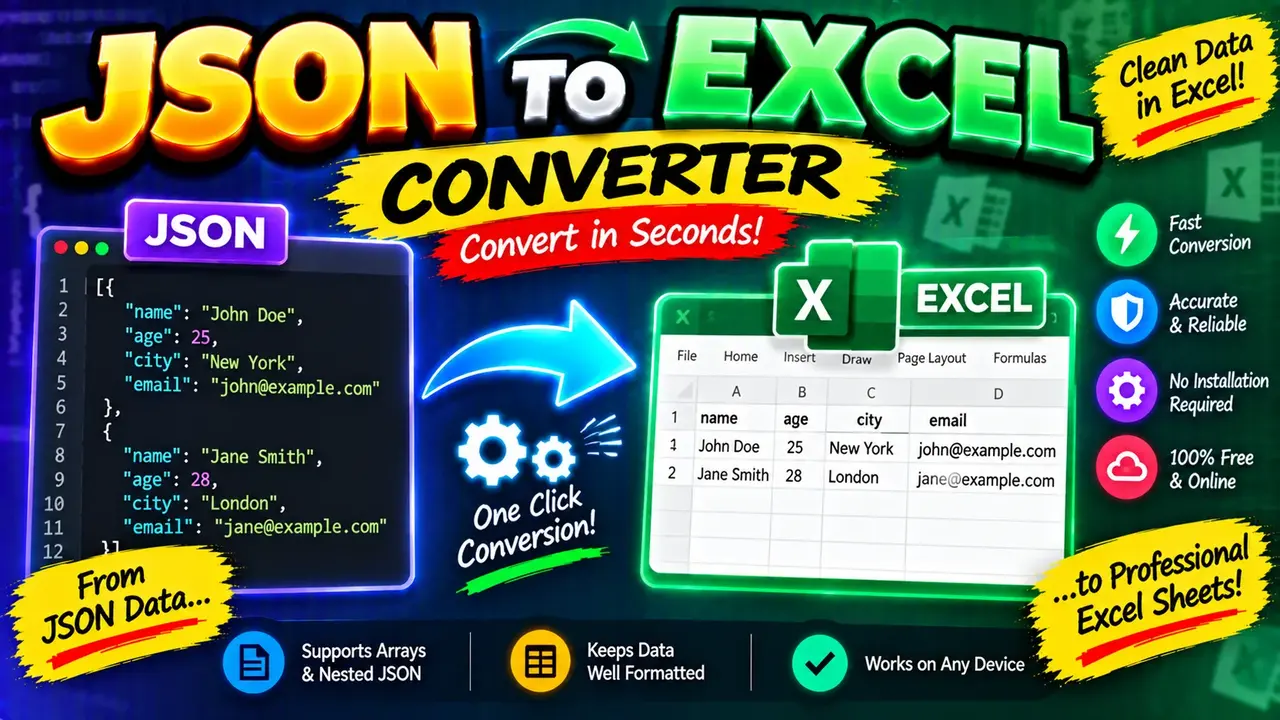
JSON to Excel Converter
TL;DR Summary
The JSON to Excel Converter turns JSON data into spreadsheet-ready Excel data, helping users move structured JSON into a format that is easier to review, sort, filter, and work with in spreadsheet software. The supplied tool information does not confirm how data is processed or stored, so avoid entering sensitive information unless the tool page clearly explains its data-handling practices.
About This Tool
The JSON to Excel Converter is a data conversion tool for users who have JSON and need to work with that information in Excel or another spreadsheet application. JSON, or JavaScript Object Notation, is widely used to represent structured data. It is common in APIs, application exports, configuration files, web services, and developer workflows. Excel, by contrast, organizes information into rows and columns. Converting JSON to Excel helps bridge those two formats.
This tool is useful when JSON is difficult to inspect as plain text or when a spreadsheet is a more convenient format for reviewing structured records. Developers can use a JSON to Excel Converter to prepare API results for spreadsheet analysis. Data analysts can use the converted output for sorting, filtering, reviewing fields, or preparing information for another workflow. Business users may find the spreadsheet format easier to read than raw JSON.
What You Enter
The main input is JSON data. Valid JSON can contain objects, arrays, strings, numbers, Boolean values, and null values. A common JSON dataset is an array containing multiple objects, where each object represents one record. For example, a simple dataset might contain customer, product, employee, order, or API response records.
The exact input controls and supported upload options depend on the implementation of the Toolhox converter. The supplied tool information identifies the utility as a JSON to Excel Converter, but it does not document a confirmed file-size limit, upload control, delimiter setting, worksheet configuration, nested-data mode, or other optional settings. Those features should not be assumed unless they are visible in the live tool.
What You Get
The intended output is Excel-compatible spreadsheet data. In a typical JSON-to-Excel conversion, JSON object properties become spreadsheet columns and individual records become rows. This makes structured information easier to scan and work with in a spreadsheet.
For example, JSON such as:
[
  {
    "name": "Alice",
    "age": 30,
    "active": true
  },
  {
    "name": "Bob",
    "age": 35,
    "active": false
  }
]
can be represented in a spreadsheet as:
| name | age | active |
|---|---|---|
| Alice | 30 | true |
| Bob | 35 | false |
This example shows the basic mapping rather than a claim about the converter's hidden implementation. Actual handling of nested objects, arrays, null values, duplicate keys, unusual JSON structures, and data types depends on the implementation of the tool.
How to Use the JSON to Excel Converter
- Step 1: Prepare the JSON you want to convert. Make sure the content is valid JSON and contains the records or information you want to place into a spreadsheet.
- Step 2: Enter or provide the JSON through the input controls available in the converter.
- Step 3: Start the conversion using the tool's conversion control.
- Step 4: Review the generated spreadsheet data and check that the fields and records appear as expected.
- Step 5: Download or use the resulting Excel output when the tool provides the completed file.
Technical Explanation
JSON to Excel conversion is primarily a structural mapping process rather than a mathematical calculation. There is no single numerical formula that applies to every JSON dataset.
For a common array-of-objects structure, the standard mapping can be described as:
JSON object key → spreadsheet column
JSON array element → spreadsheet row
For example, if the input contains three objects and each object represents one record, the normal tabular representation contains three data rows. If the objects contain fields such as id, name, and status, those field names can be represented as column headers.
Nested JSON requires additional handling because spreadsheets use a flat grid while JSON can contain objects inside objects and arrays inside objects. A converter may flatten nested structures, preserve them as JSON text, or use another representation. The supplied Toolhox information does not confirm which nested-data strategy this particular implementation uses, so users should inspect the output rather than assuming a specific flattening rule.
JSON data types also matter. Strings are text values. Numbers can represent quantities or other numeric values. Boolean values represent true or false states. Null represents an absent or empty value. The way these values are written into an Excel workbook depends on the converter's implementation.
Input and Output Quick Reference
| Item | JSON | Excel Representation |
|---|---|---|
| Object field | Key and value | Usually a column and cell value |
| Array record | One array element | Usually one spreadsheet row |
| String | Text value | Text cell |
| Number | Numeric value | Numeric spreadsheet value, depending on implementation |
| Boolean | true or false | Boolean or text representation, depending on implementation |
| Nested object | Object inside another value | Depends on the converter's nesting rules |
Useful Example
Suppose an API returns a list of products in JSON. Each product has an ID, name, price, and category. JSON is useful for the API because it preserves a structured format that software can read. An Excel spreadsheet is useful when a person needs to review the same records in rows and columns.
[
  {
    "id": 101,
    "name": "Notebook",
    "price": 12.50,
    "category": "Office"
  },
  {
    "id": 102,
    "name": "Pen",
    "price": 2.25,
    "category": "Office"
  }
]
A conventional tabular representation would contain four columns—id, name, price, and category—and two data rows. The example illustrates the basic conversion concept and does not prescribe the internal file-generation method used by Toolhox.
Why Use This JSON to Excel Converter & How Our JSON to Excel Converter Beats the Competition
The practical advantage of a dedicated JSON to Excel tool is that it focuses on one common conversion task: moving structured JSON into a spreadsheet-oriented format. Different approaches have different trade-offs, and the right choice depends on the user's data and workflow.
| Method | Ease of Use | Calculation Speed | Best For | Limitations |
|---|---|---|---|---|
| Toolhox JSON to Excel Converter | Designed for direct JSON-to-Excel conversion | Depends on the input and implementation | Users who need to convert JSON into spreadsheet data | Exact supported options and data-handling behavior depend on the tool implementation |
| Manual Calculation / Restructuring | Low for large or complex JSON | Depends on the amount of manual work | Very small datasets or one-off edits | Manual copying can introduce errors and takes more effort as the dataset grows |
| Spreadsheet Import Features | Varies by spreadsheet software | Depends on the application and dataset | Users already working inside a spreadsheet application | May require additional import, parsing, or transformation steps |
| Custom Script | Requires programming knowledge | Depends on the script and dataset | Repeatable or highly customized conversion workflows | Requires development effort and maintenance |
| Professional Data Software | Can require setup and training | Depends on the software and workflow | Complex data transformation and larger workflows | May be more setup than needed for a straightforward conversion |
This comparison describes general workflow differences. It does not claim that Toolhox is faster, more accurate, more private, or more capable than another product unless those facts are independently verified.
Who Can Use It?
The JSON to Excel Converter can be useful for developers, analysts, students, business users, testers, and anyone who needs to turn JSON into spreadsheet-friendly information. It is especially relevant when the source system provides JSON but the next step requires a familiar spreadsheet format.
Common Use Cases
- Turning structured JSON records into rows and columns for review.
- Preparing API response data for spreadsheet analysis.
- Converting application exports into a more familiar tabular format.
- Making structured developer data easier for non-developers to inspect.
- Preparing JSON-derived information for sorting, filtering, or further spreadsheet work.
Assumptions and Limitations
The quality of a JSON-to-Excel conversion depends on the structure and validity of the source JSON as well as the rules used by the converter. A clean array of similar objects is generally easier to represent in rows and columns than deeply nested or irregular data.
Users should check the generated spreadsheet before relying on it for important work. Pay particular attention to nested objects, arrays, missing fields, null values, long text, unusual characters, duplicate keys, and data types. Spreadsheet formats also have their own structural limits, so very large or highly complex JSON datasets may require a more specialized data-processing workflow.
The supplied information does not establish a specific maximum input size, supported browser list, file-upload policy, server-processing policy, retention period, or exact handling of every JSON edge case. Do not assume those details unless they are stated on the live tool page.
For financial, legal, medical, regulatory, operational, or other high-stakes data, review the converted output against the original JSON before using it as a source for decisions or official records. A conversion tool changes data representation; it does not independently verify whether the source data is correct.
Why Review the Output?
Conversion is not the same as validation. Even when the source JSON is syntactically valid, its structure may not map neatly to a spreadsheet. Reviewing the output helps confirm that expected columns are present, records are aligned, and important values were represented as intended.
The JSON to Excel Converter is therefore best viewed as a practical bridge between structured JSON and spreadsheet workflows. It can reduce the need to manually copy structured information into rows and columns, while users remain responsible for checking the resulting file and confirming that it meets their specific needs.